 Parental controls · Android
KidsSafeTech
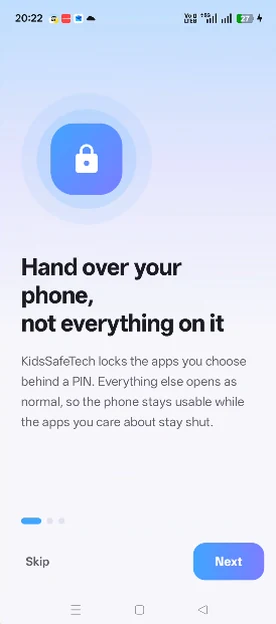
Decide, app by app, what your child's phone will and will not open. Everything else keeps working normally.

- No account
- No ads
- Works offline
- Android 8.0+
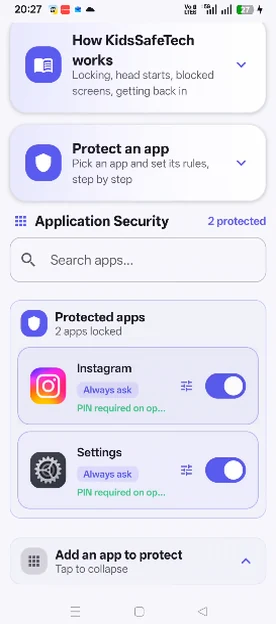
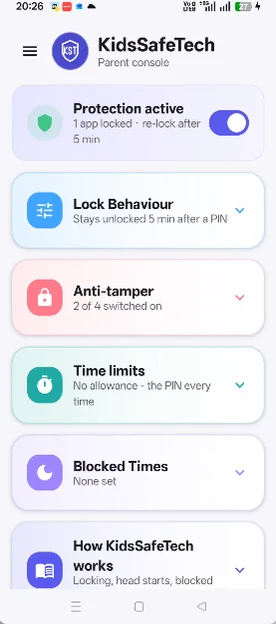
Choose what to protectPick apps from the list. Everything you do not pick keeps working as normal.
You choose what each app does when it opens
Protect the two apps that matter and leave the rest alone. Nothing is managed until you say so.
Open
Not managed at all. Most apps should stay here.
Always ask
Your key, every single time it is opened.
Quick peek
Opens with no key and locks again a few seconds later — long enough to check a message, not long enough to settle in.
Daily budget
Free until the day's allowance runs out, then your key.
What happens when it goes wrong
Any parental control app can lock an app. These are the questions worth asking before you install one.
Emergency calls always work
The dialler stays reachable during blocked times, and the lock screen carries an emergency call button. A managed phone is never an unreachable phone.
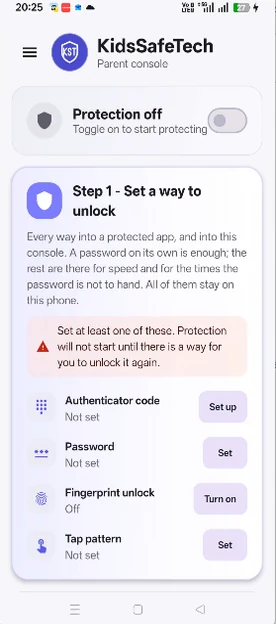
Two ways in, always
Protection will not start until two unlock methods exist, so one lost or broken phone can never lock you out of your own child's device for good.
It cannot read the screen
The accessibility service is declared for window-state changes only, with canRetrieveWindowContent=false. Not a promise about our conduct — a limit Android itself enforces.
Tamper protection
Optional uninstall protection, protection restarts itself after a reboot, and apps installed later can be locked automatically.
Backup and restore
Save the whole setup as an encrypted block behind a passphrase you choose, and restore it on a replacement phone or a second parent's device.
Nothing leaves the device
No account, no sign-up, no ads. Settings, your parent key and usage figures stay on the phone, and screen-time figures delete themselves after seven days.
Why each one is needed
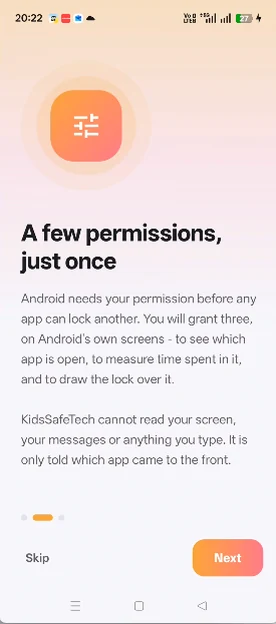
None of these can be granted by the app itself. Each is a switch you turn on in Android Settings, and the setup guide walks you to each screen in turn.
- Usage access and Accessibility
- To tell which app is currently in the foreground, so the lock is applied to the right one. The app does not read screen contents, what you type, messages or passwords.
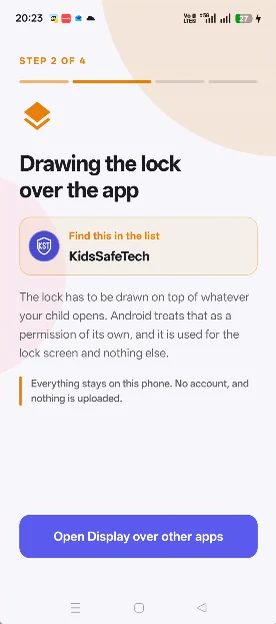
- Display over other apps
- To show the lock screen on top of a protected app.
- Device admin (optional)
- Uninstall protection, and nothing else.
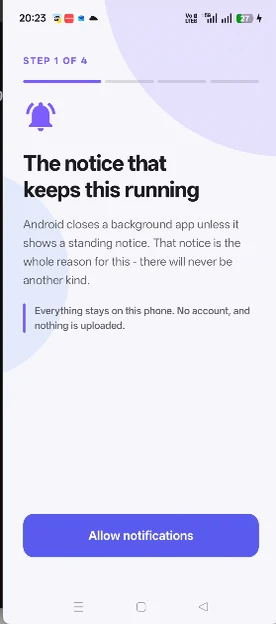
- Notifications
- The ongoing notice showing that protection is running.
Take the next step
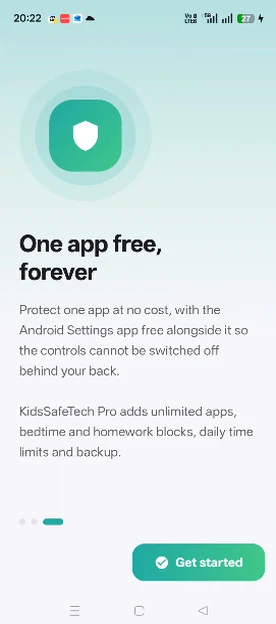
Protect one app, free
One app stays locked at no cost, for as long as you use it. ₹399 unlocks unlimited apps, schedules and backup.
What can it actually see?
The short answer is nothing on the screen, and the reason is a limit Android enforces rather than a promise we make.